Step 1: Navigate to the Subscribers
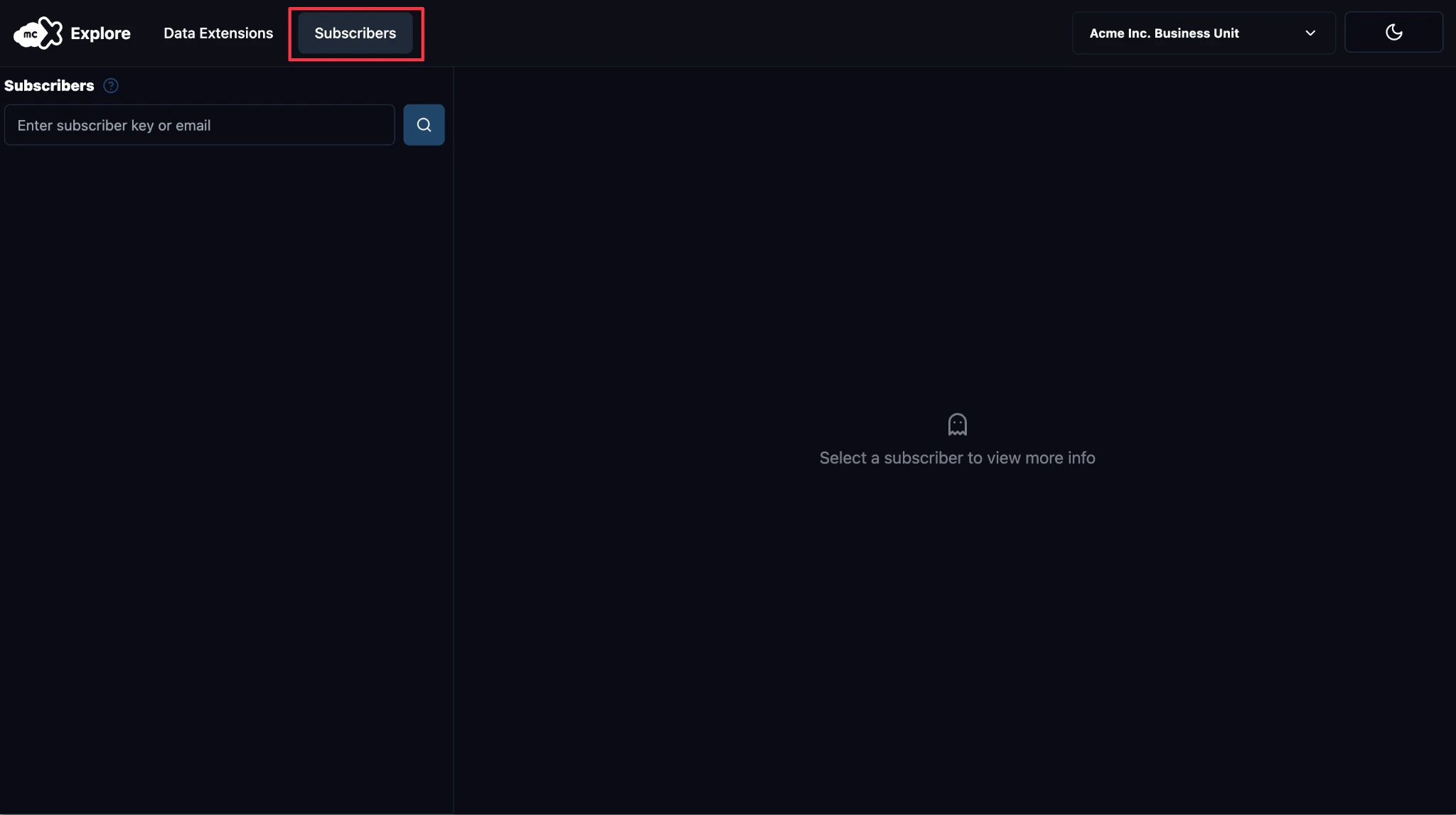
- Click Subscribers from the top navigation menu. .
- Upon accessing the Subscribers page, you will see a search bar in the left pane and an empty canvas in the right pane, ready to display the subscriber’s information.
Step 2: Search for the Subscriber
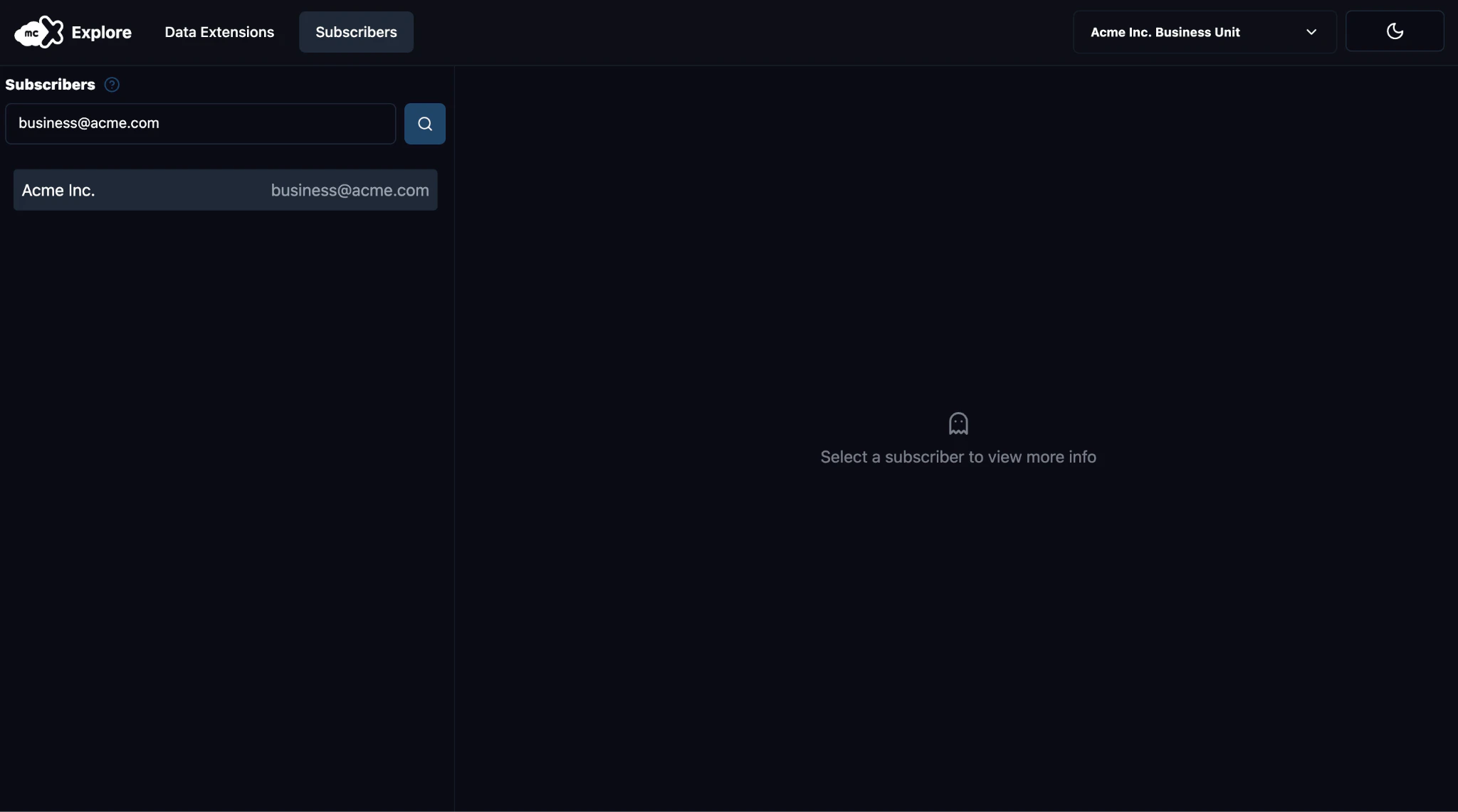
- In the search bar, enter the Subscriber Key or the Email Address of the record you want to investigate.
- Click the Search button next to the search bar to retrieve a list of matching records, showing key details such as the Email Address and Subscriber Key.
Only the first 50 records that exactly match the provided Email Address or Subscriber Key will be displayed.
Step 3: Select the Subscriber Record and view details
- Review the search results and select the Subscriber record you wish to investigate.
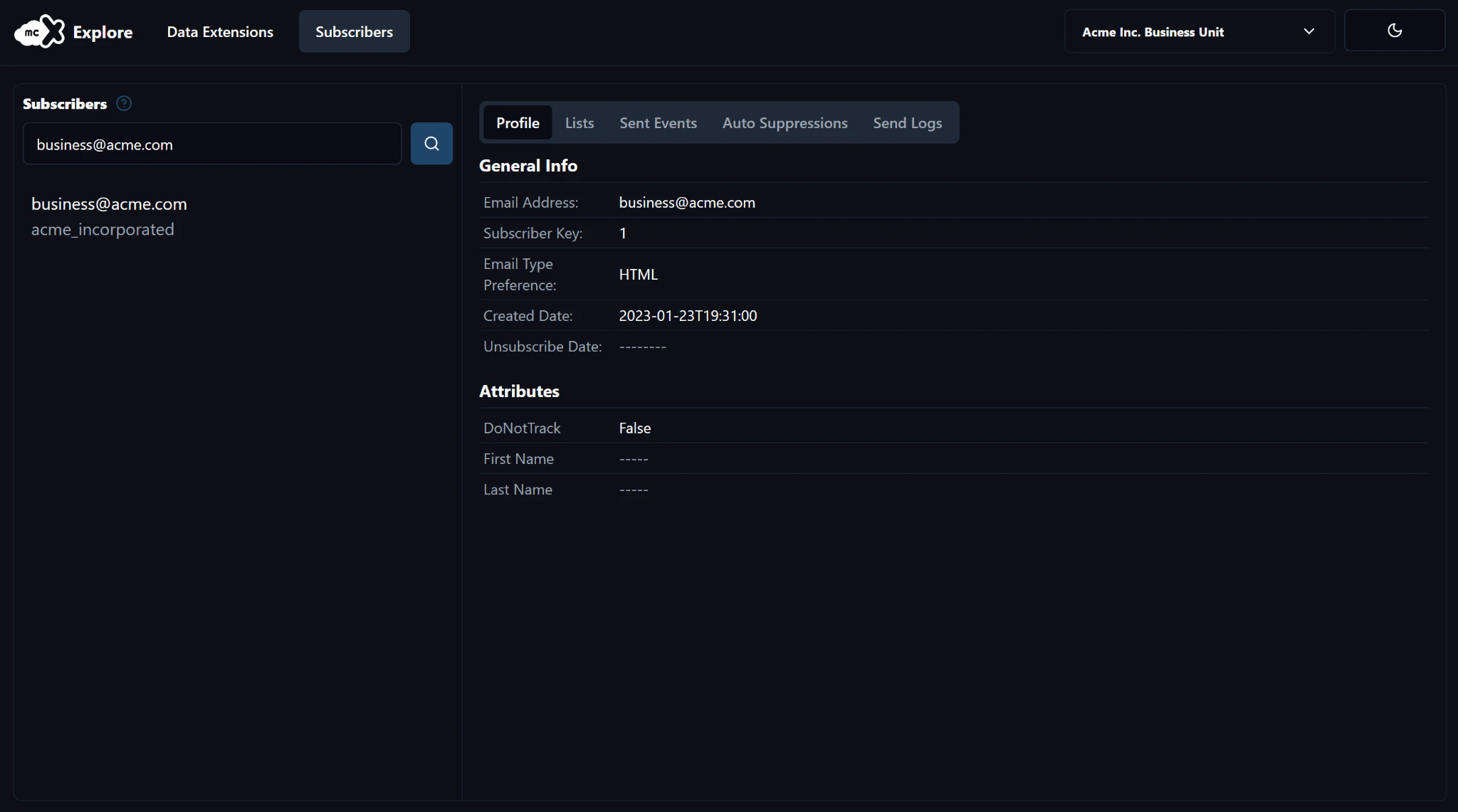
- After clicking the Subscriber record, view the Subscriber information in the canvas in the right side pane:
| Tabs | Content | Action |
|---|---|---|
| Profile | General information of the subscriber (e.g., email address, subscriber key, created date, unsubscribed date, attributes). | Access and view |
| Lists | All lists that currently include the subscriber. | Access and view |
| Sent Events | Records of all emails sent to the subscriber for the past 30 days, beginning with the current day, by default. It includes information such as the title of the email, the email address of the sender, and the date the email was sent. | Use the Date Picker to select the start date for the 30-day period. This will retrieve Sent Event records from the selected date going back 30 days. (e.g., If you select February 13, 2025, it will show events from January 14 to February 13). Click the Expand Details icon at the left side of the Title of the Sent Event record to view additional information, such as the preview of the email sent. |
| Auto Suppressions | Auto Suppression Lists that currently include the subscriber are displayed, along with details such as the email address, and the date when the subscriber is added. | Access and view |
| Send Logs | Records from the SendLogs Data Extension, if configured in SFMC, are shown. This may include emails, SMS messages, and push notifications sent to the subscriber. | Select the Send Log Type at the top-right corner below the Send Logs tab to view records for the respective communication type. Click the Expand Details icon at the left side of the CustomObjectKey of the SendLog record to view custom attributes that were added to your SendLog Data Extension. |