Step 1. Access Package Manager
- Open the Salesforce Marketing Cloud Dashboard, then go to Package Manager under the Platform tab.
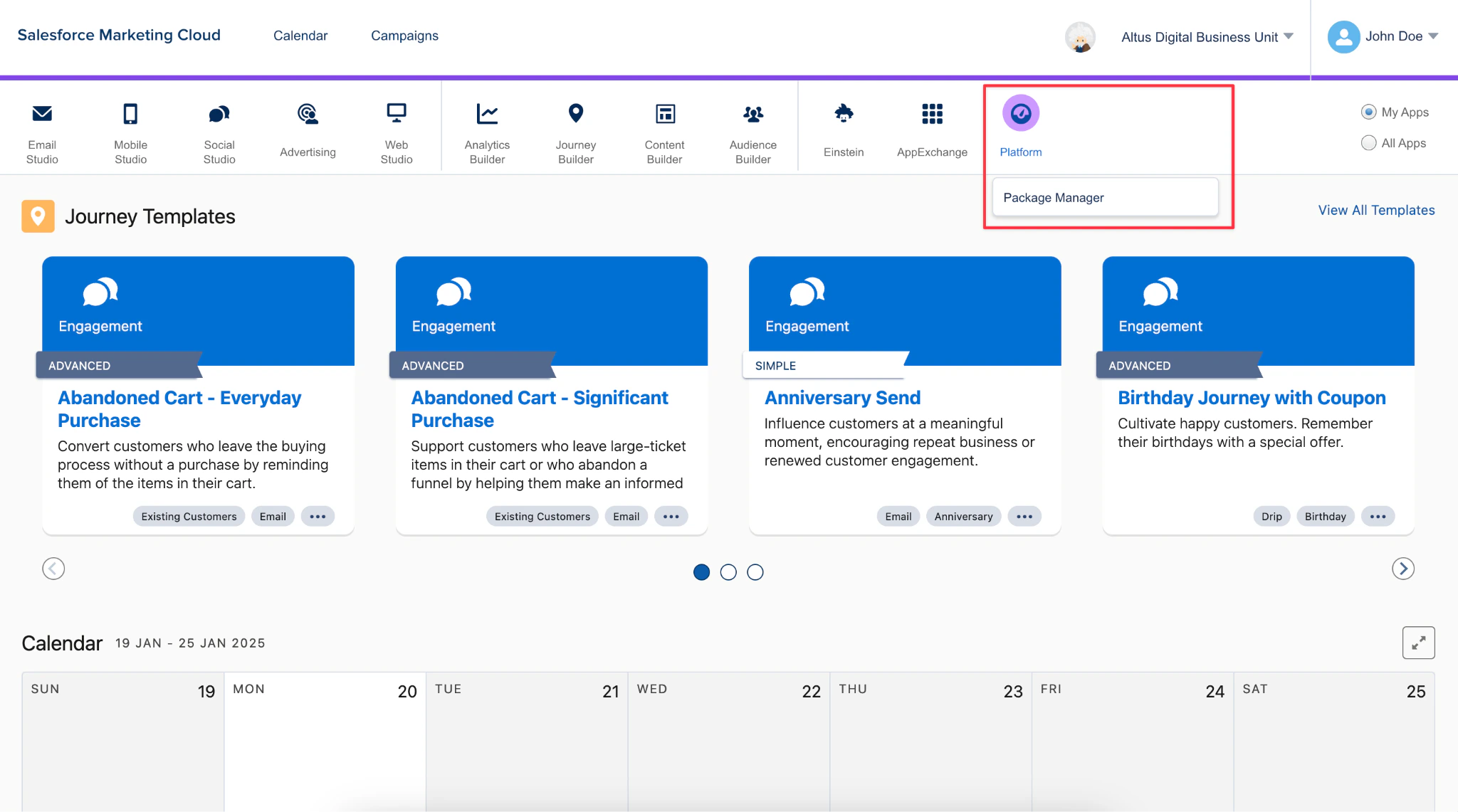
If you are unable to locate Package Manager within the Platform tab, you may need to reach out to your administrator for access.
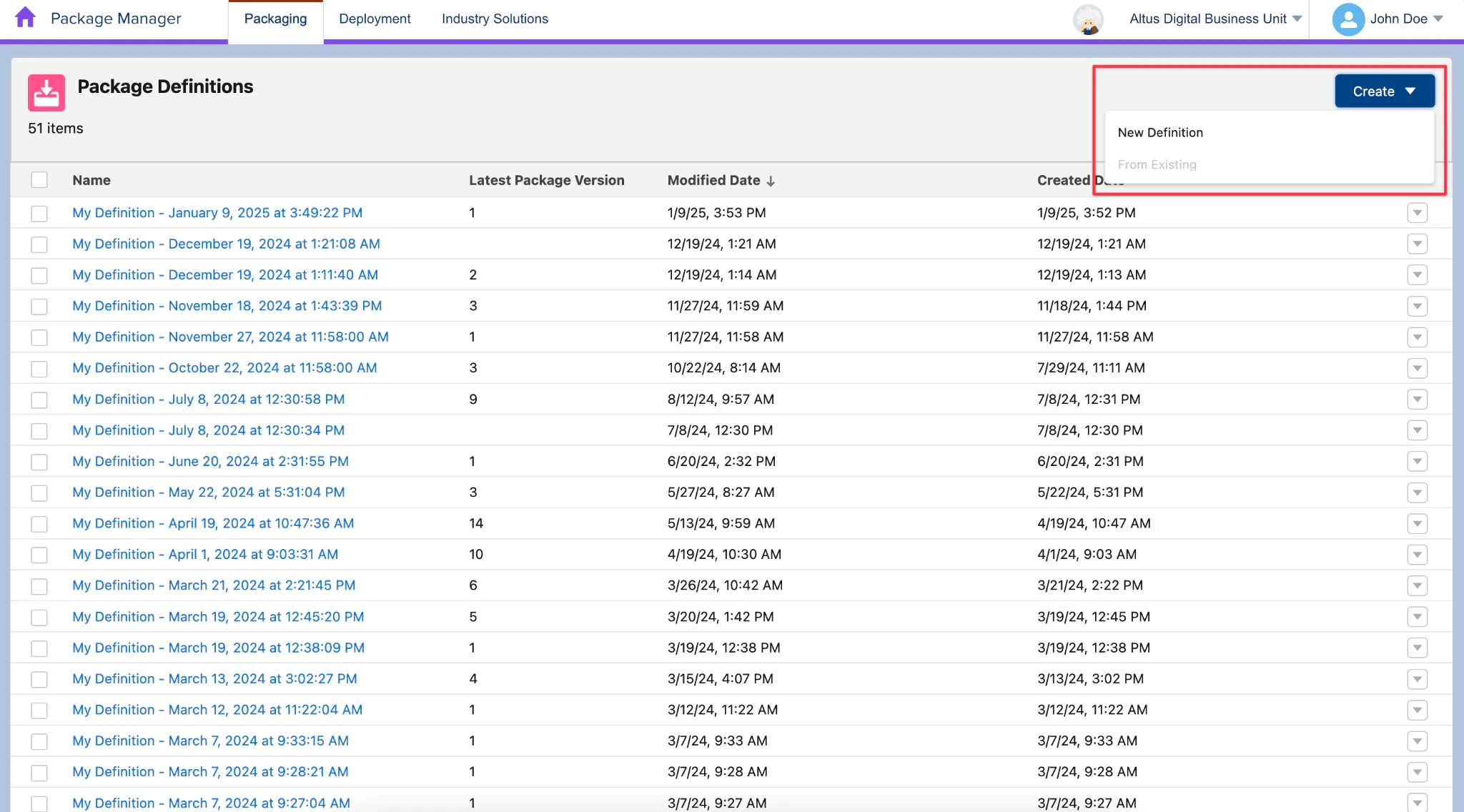
Step 2. Create New Definition
- On the upper right corner, click Create > New Definition
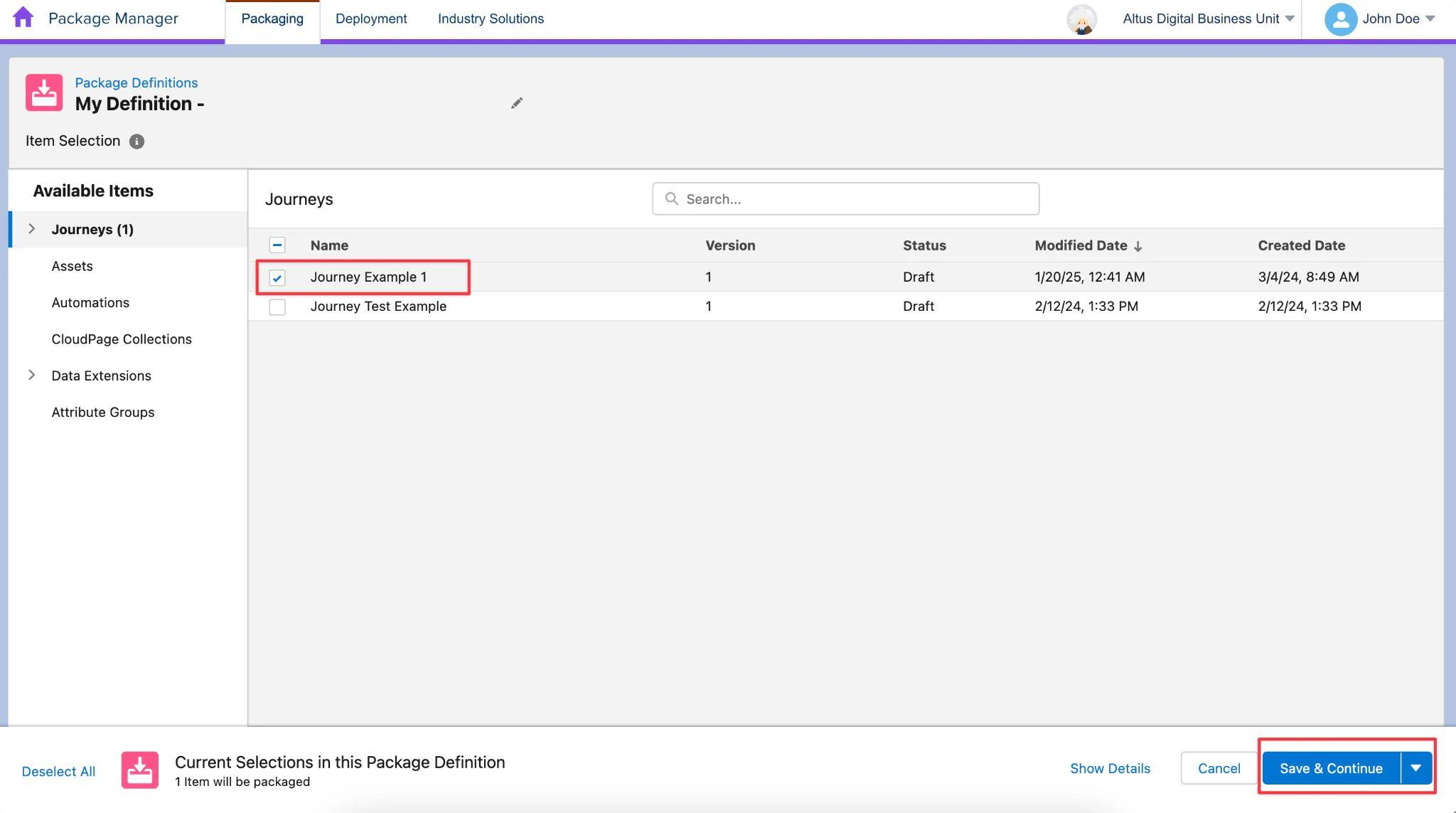
Step 3. Select Journey or Automation
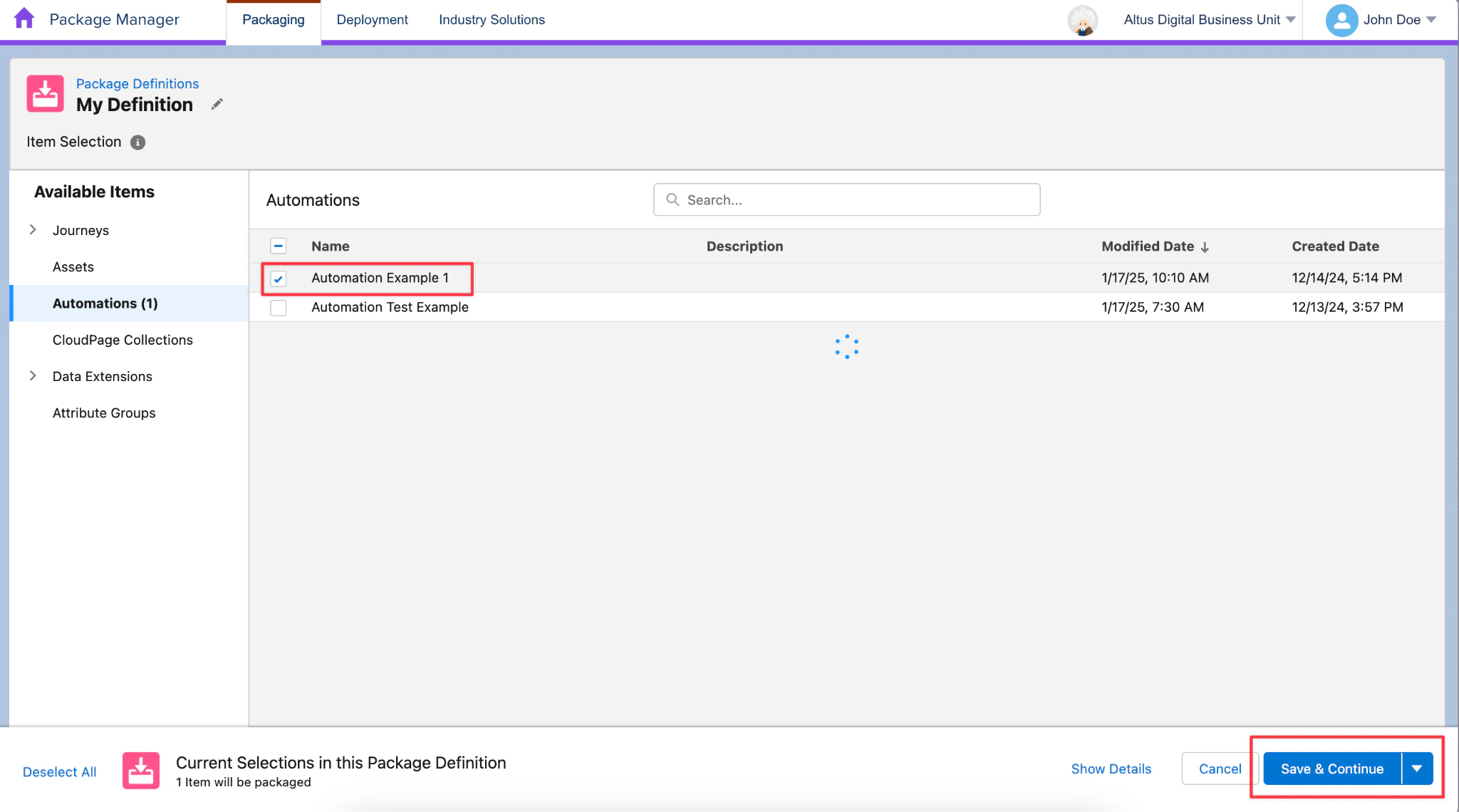
- Under Journeys or Automations, pick a single journey or automation then proceed to Save & Continue.
MCX Document does not accept a JSON definition with multiple journeys or automations. Refer to MCX Document limitations.
Step 4. Package Items
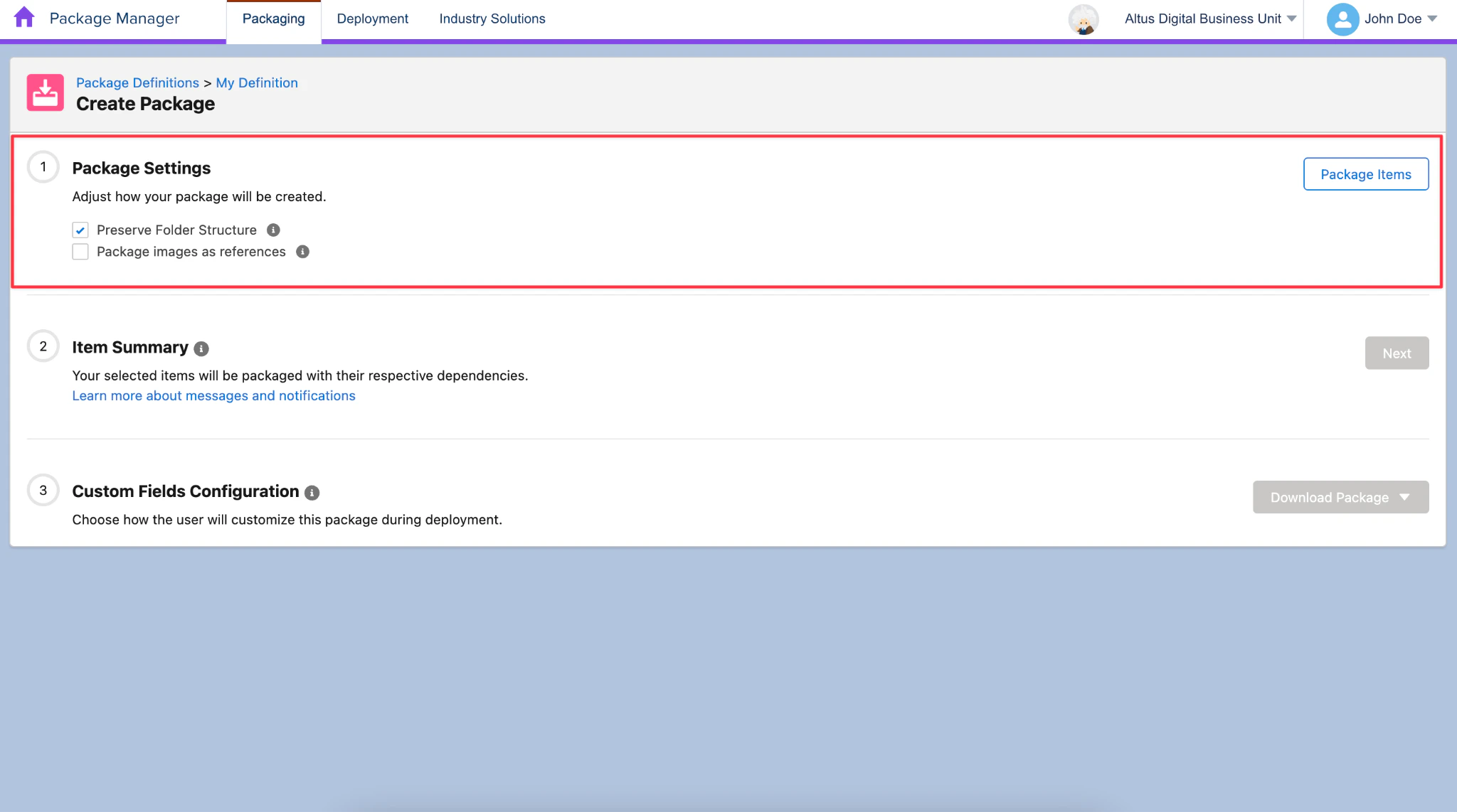
- Adjust Package Settings then Click Package Items to set how the package will be created.
Step 5. Review Item Summary
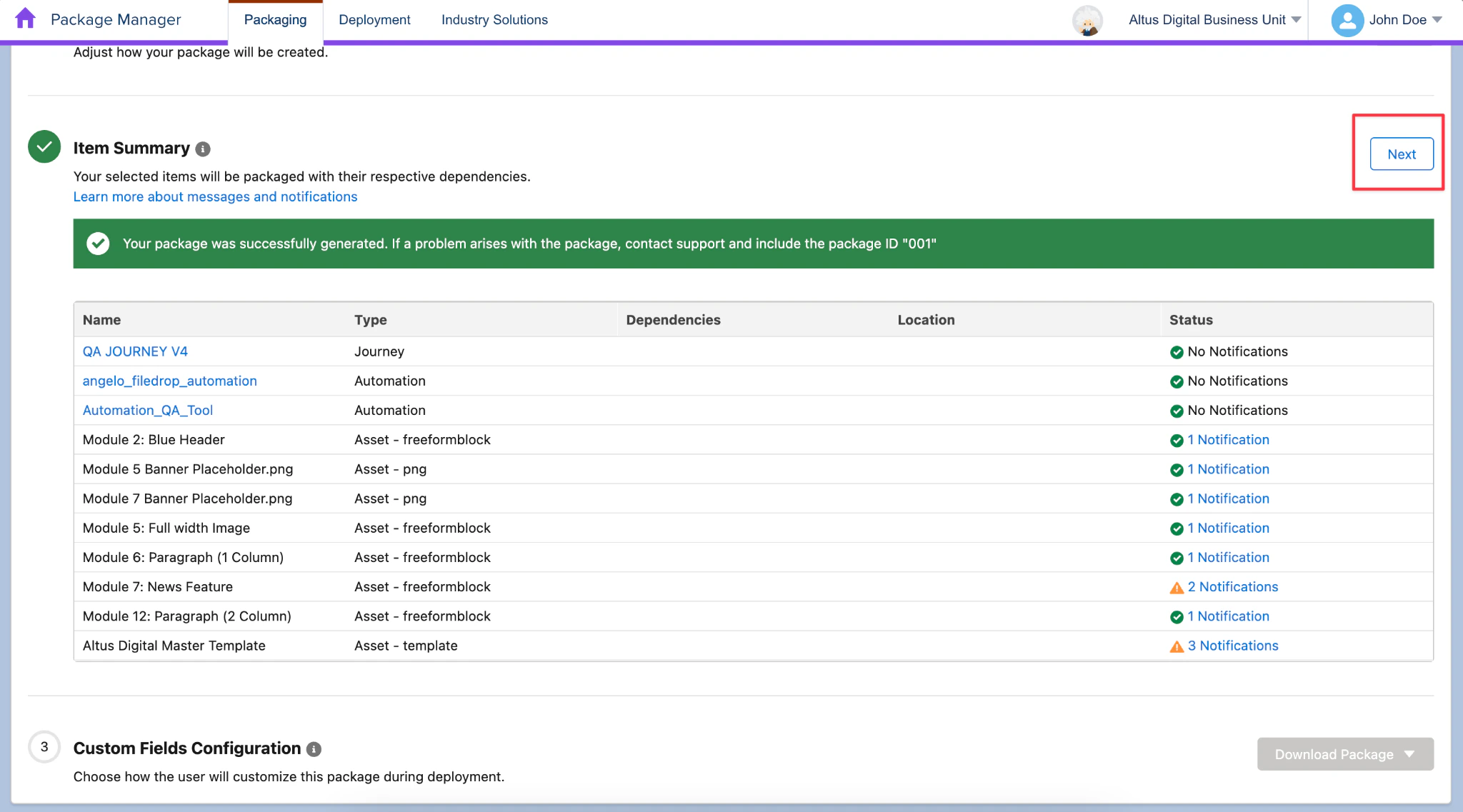
- After the package is successfully created, click Next on Item Summary
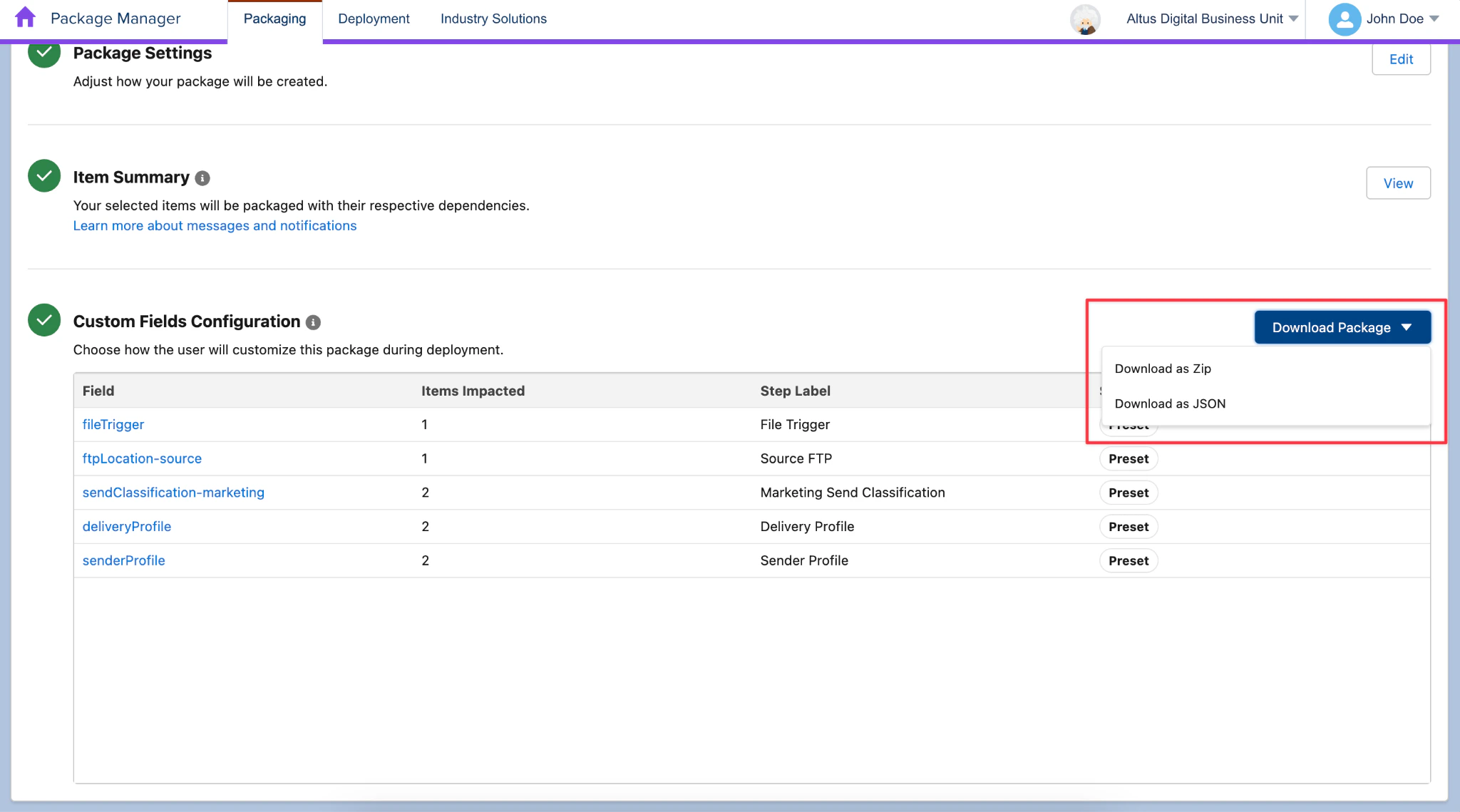
Step 6. Download Package as JSON
- Finally, proceed to Download the package as JSON.