Before creating a document, ensure that you have already extracted the raw JSON package data from SFMC. Click here to see the guide on how to extract a JSON definition.
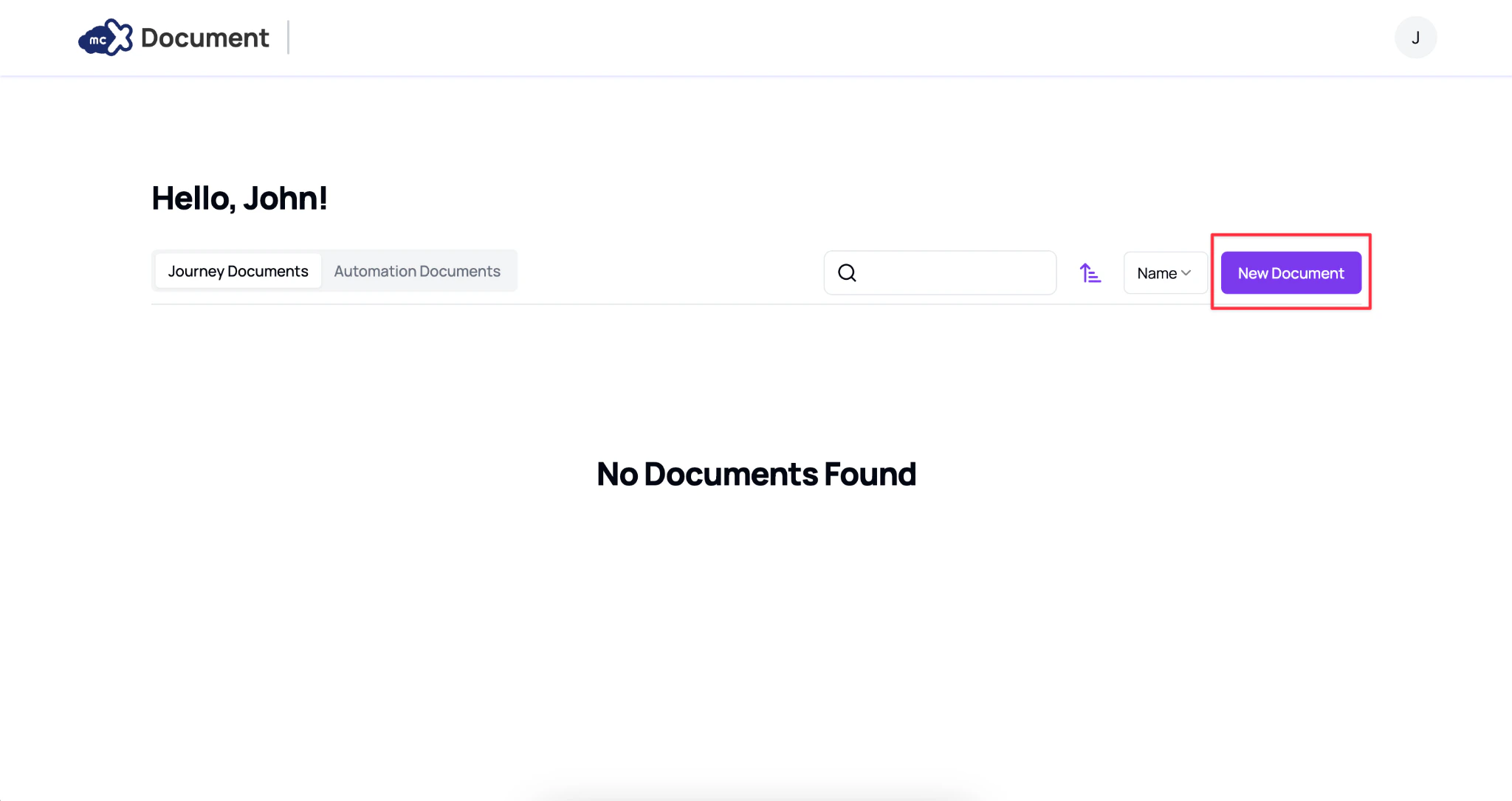
Step 1. Create New Document
- Select Journey Documents or Automation Documents tab depending on what type of document you want to create, then proceed to click New Document.
Step 2. Select JSON definition file
- Select the JSON definition file exported from Salesforce Marketing Cloud Package Manager.
Step 3. Wait
- Wait for the Document to load and process.
Step 4. Edit details
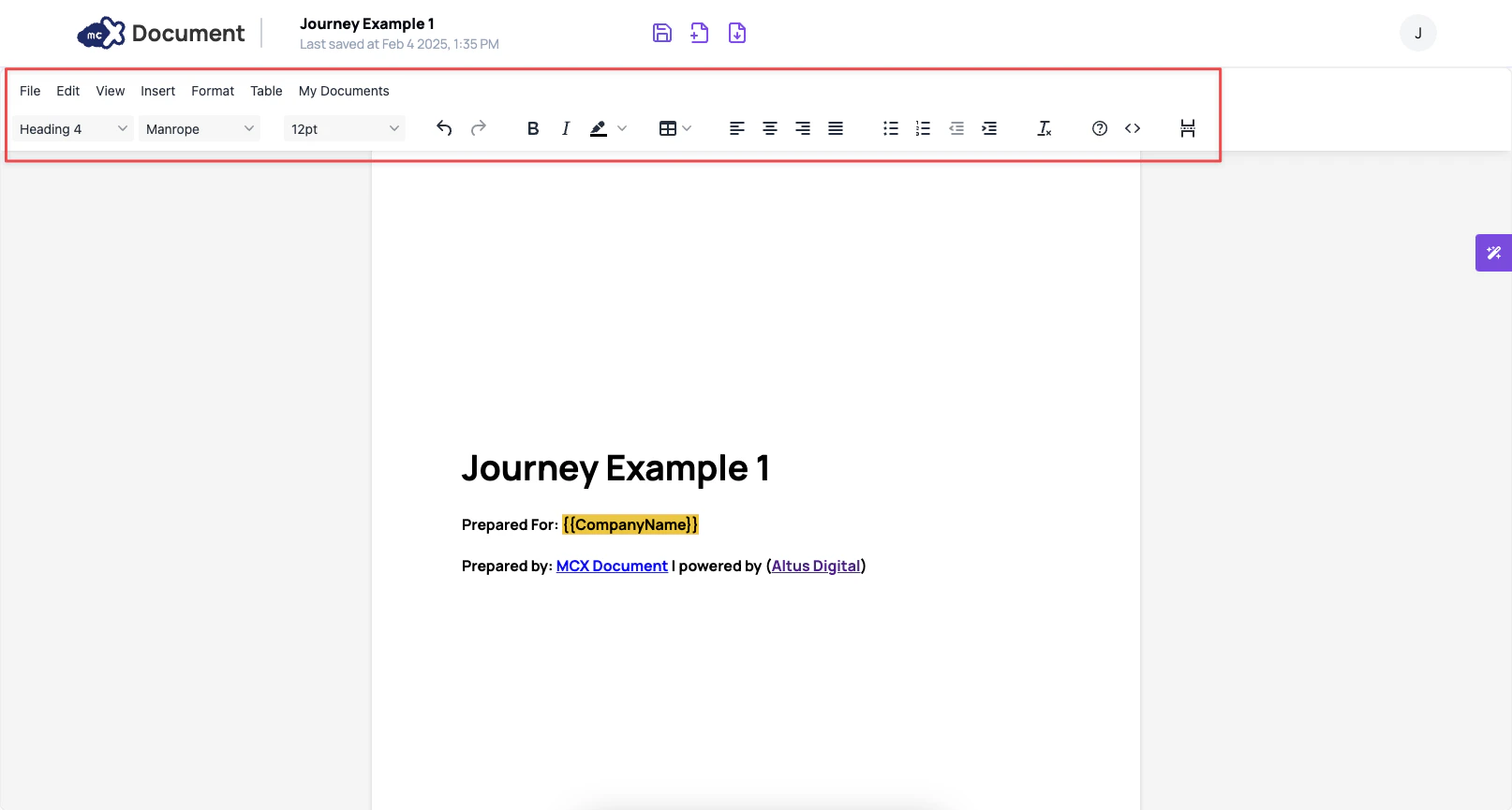
- You can check the document details and make necessary edits using the toolbar.
- Formatting can be applied to headings, text, and lists.
- Tables can be inserted if additional structured information is needed.
- Users can adjust alignment, font, and text styling as required before downloading the final document.
- Page breaks enable users to clearly define content separation, ensuring proper formatting and structure for viewing and printing.
Other Considerations
While most parts of the document can technically be edited, the following sections are not recommended for modification as they are predefined by the template and ensure document consistency and accuracy.| Section | Why Editing is Not Recommended |
|---|---|
| Table of Contents | Automatically generated based on document structure. Editing manually may lead to inconsistencies when content is updated. |
| Acronyms & Definitions | Standardized list of technical terms used throughout the document. Changing these might result in inconsistencies or misunderstandings. |
Variables denoted with curly braces {{ variable }} | These variables must be manually filled in cases where the app cannot automatically provide the necessary values. |
Step 5. Download document
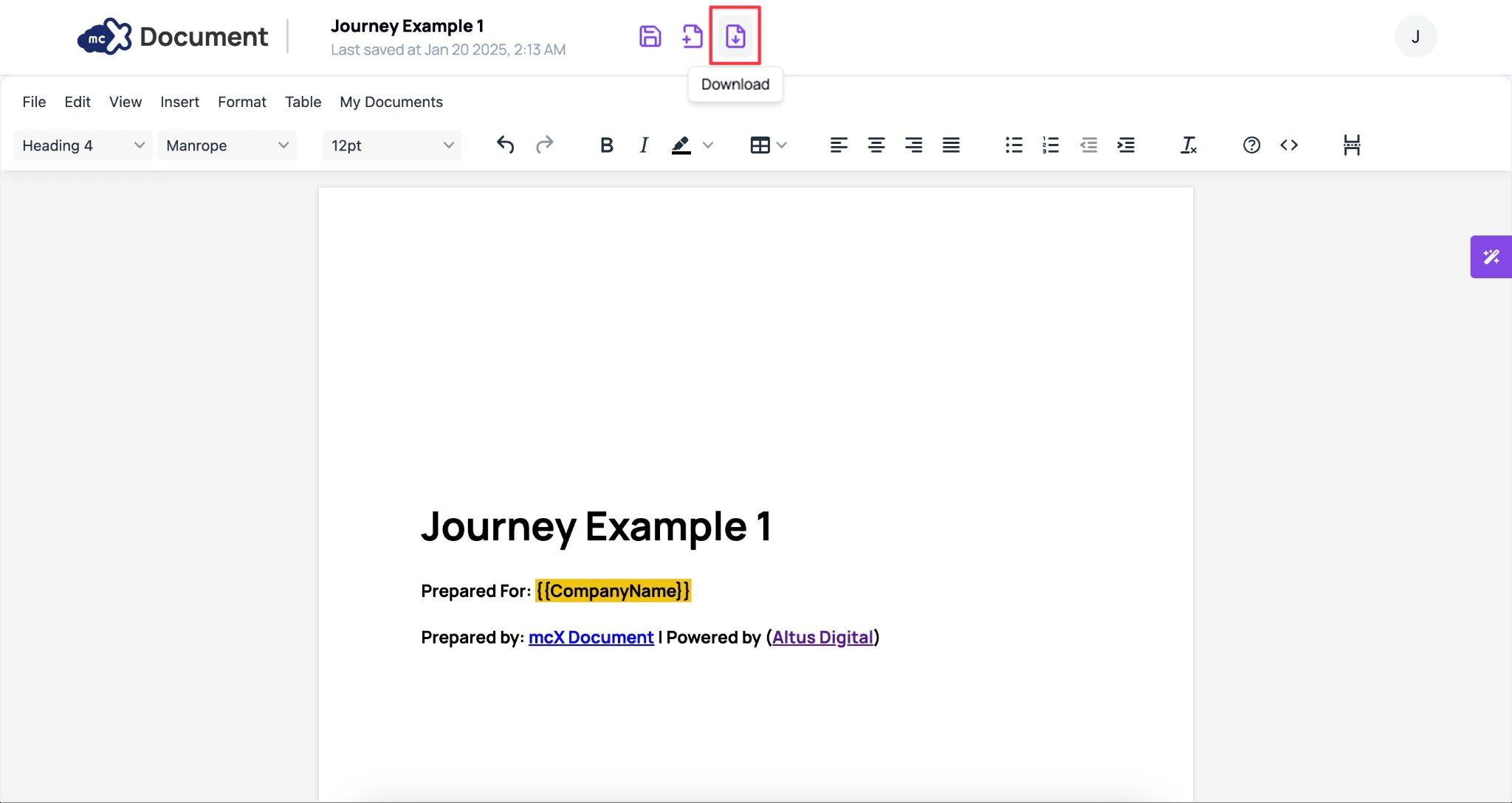
- Once done, you may save the document and proceed to Download.
This will save the document as PDF