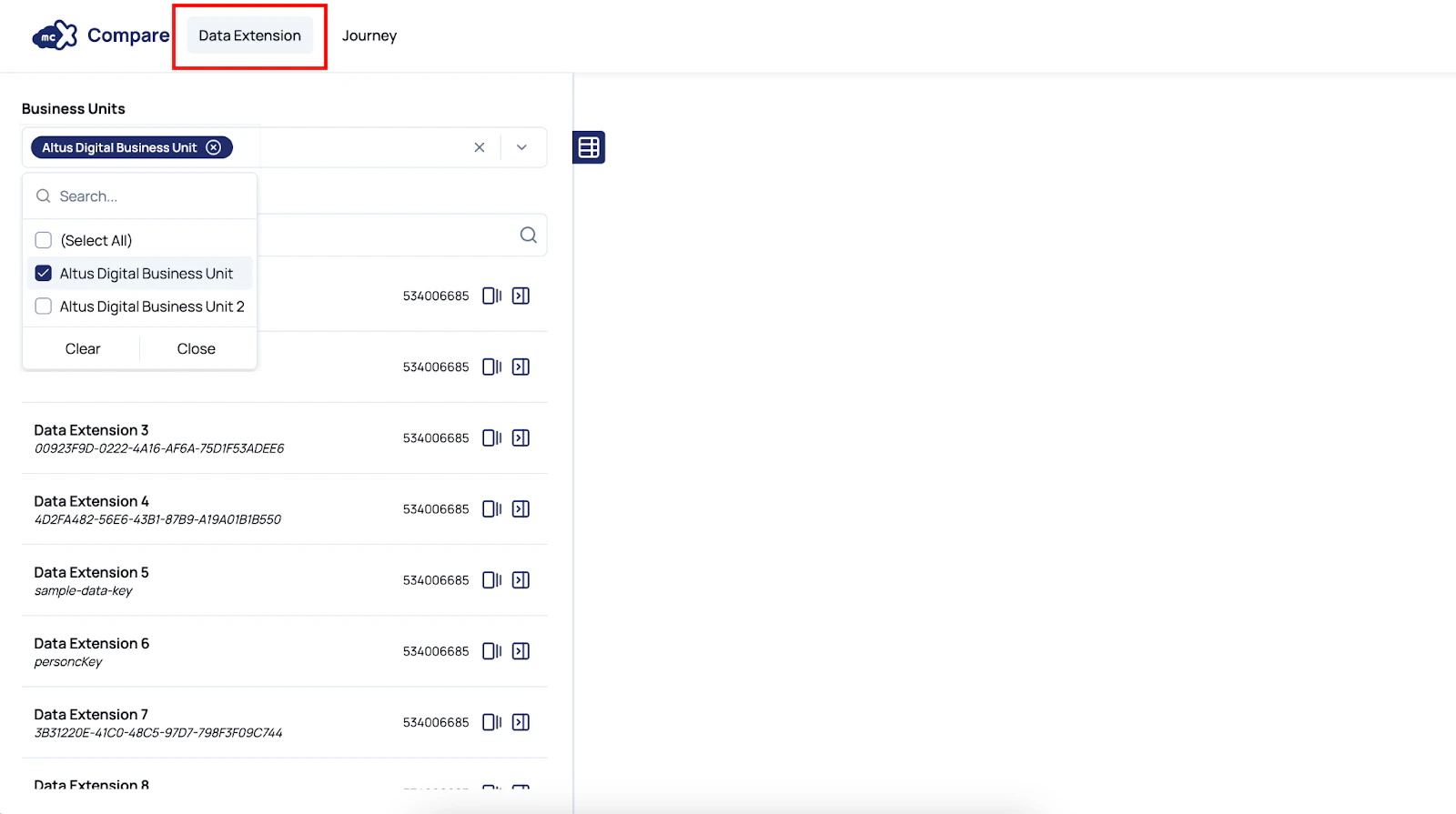
Step 1: Select Feature
- To compare Data Extensions click on the “Data Extensions” tab in the top navigation menu
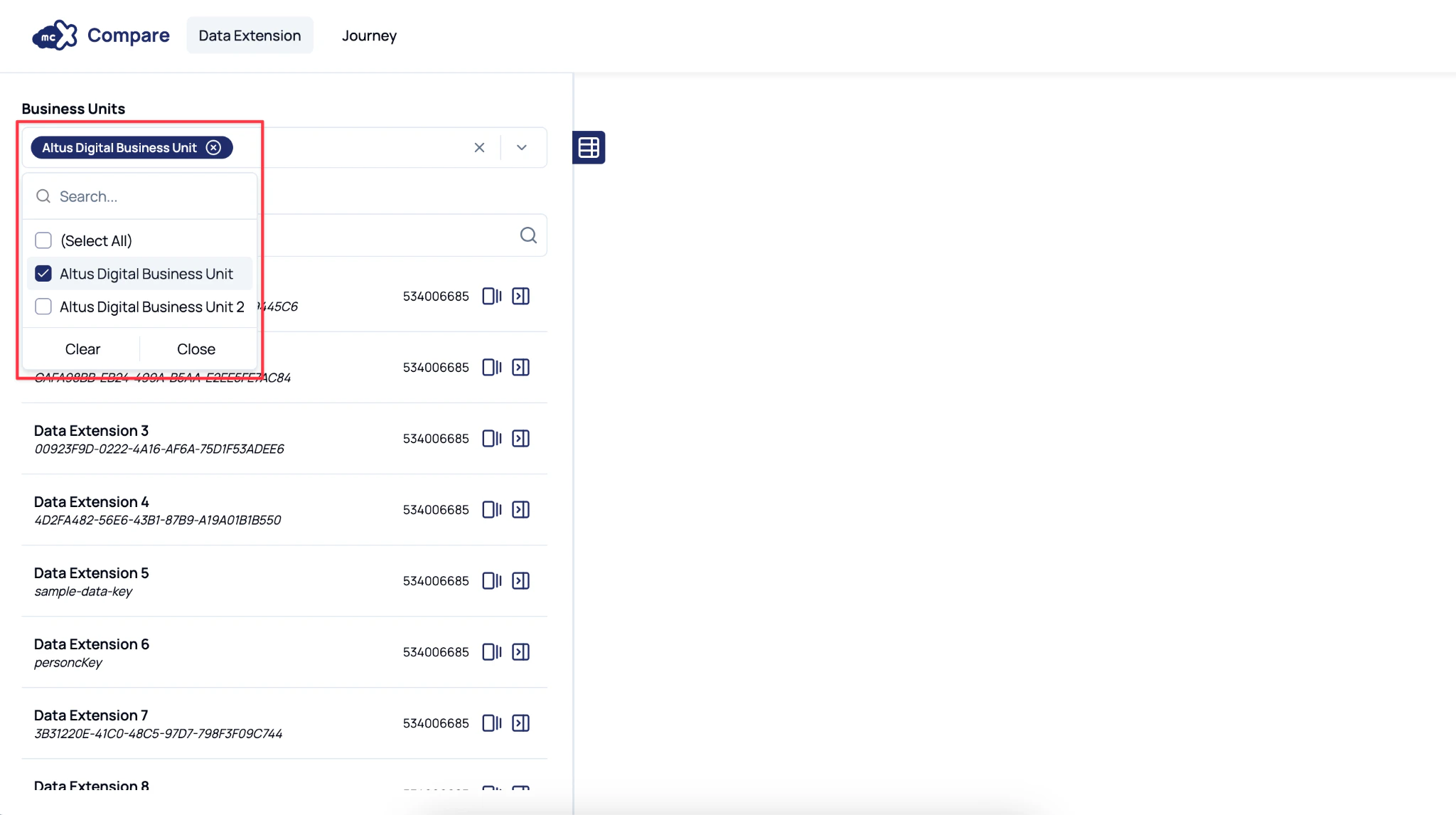
Step 2: Select Business Units
- Begin by selecting the Business Units from which you want to retrieve data extensions.
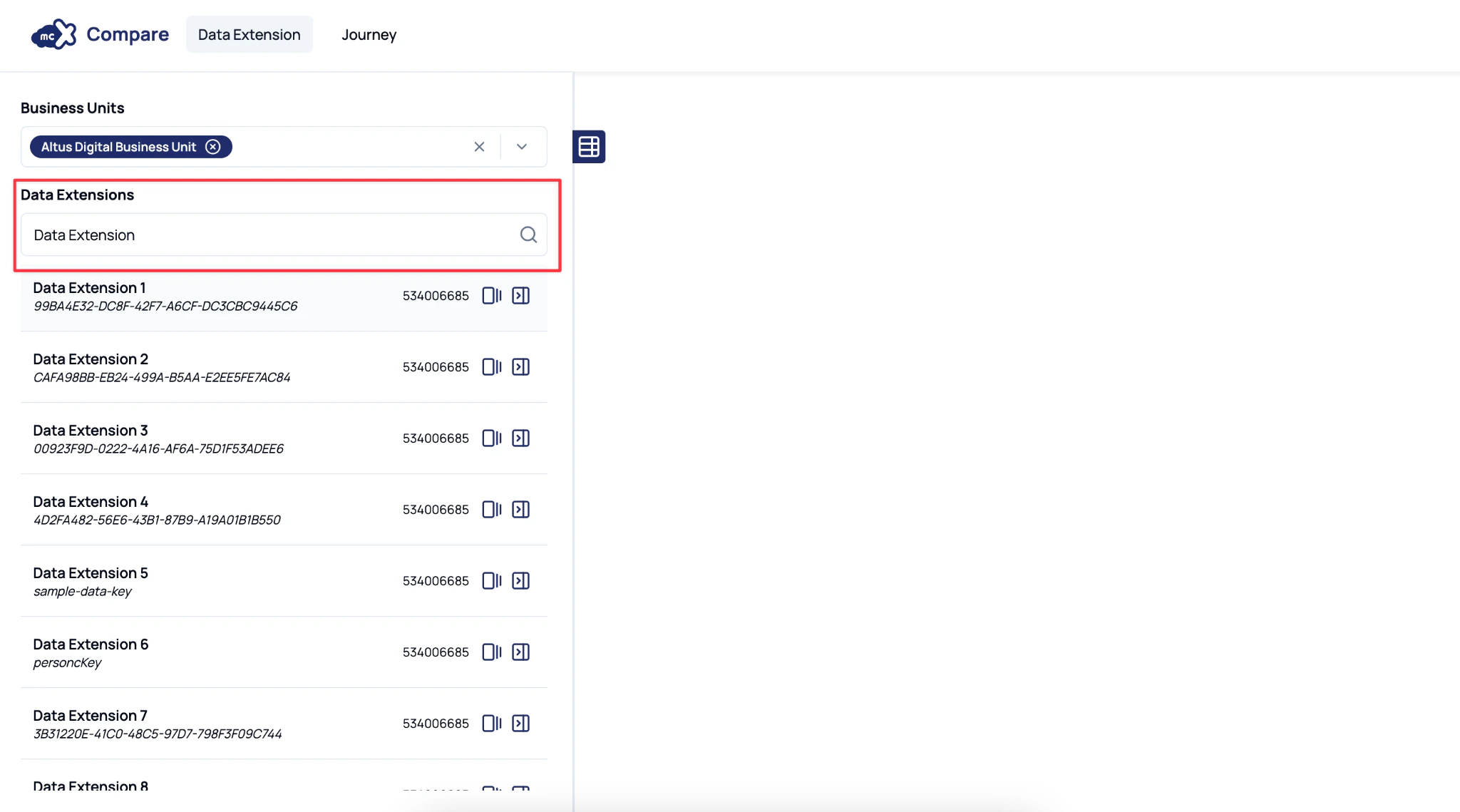
Step 3: Search for Data Extensions
- Use the Data Extension Search field to locate the first data extension you want to compare.
- Enter the name or external key of the data extension, and select it from the recommendations list.
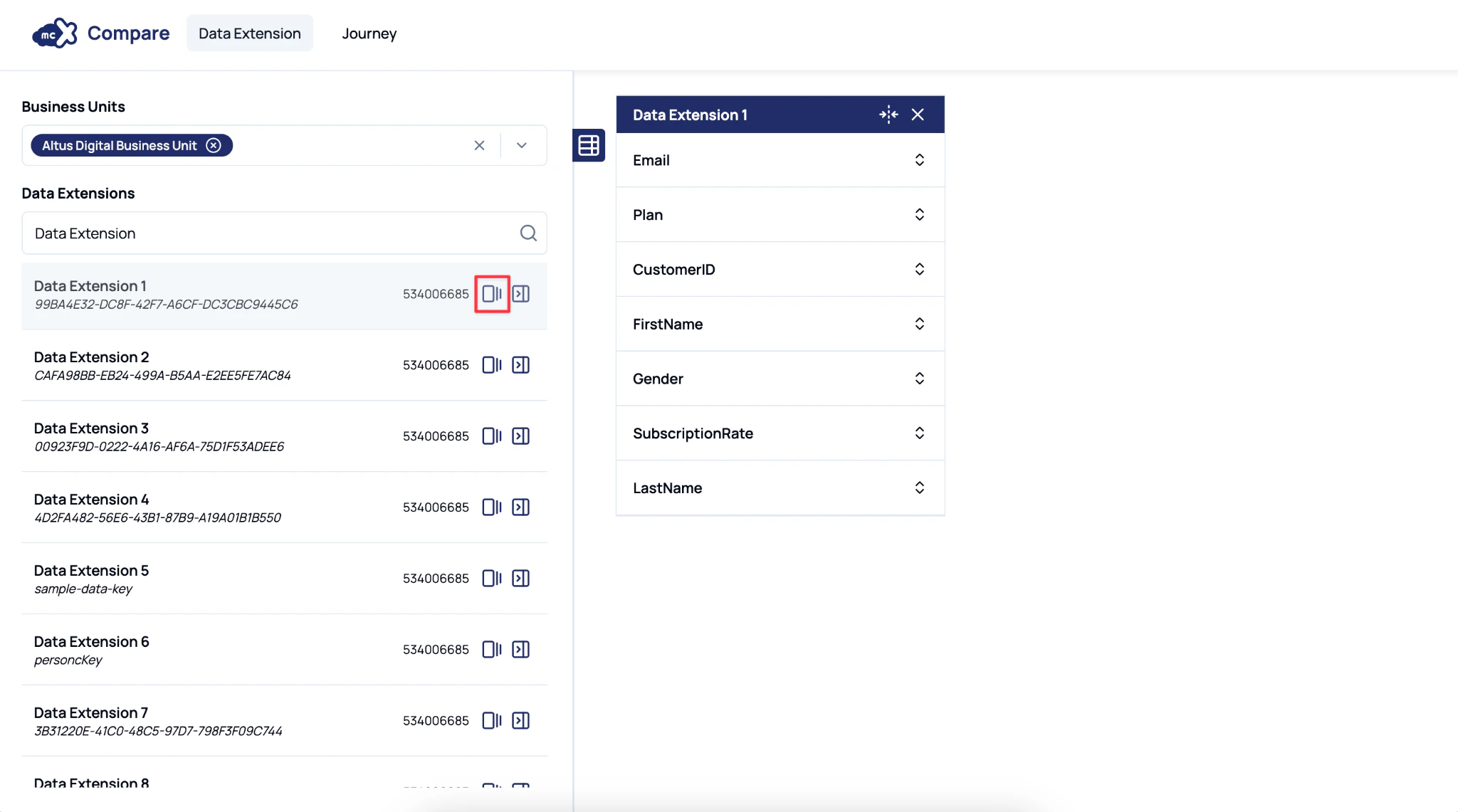
Step 4: Click the ‘Select for Compare’ Button
- Once a data extension has been selected, click the ‘Select for Compare’ icon (shown below). This will add the data extension to the Canvas as your Reference Data Extension.
Step 5: Compare with another DE
- Repeat the search process to locate the second data extension you want to compare.
- Select this data extension and add it to the comparison queue using the ‘Compare with Selected’ icon (shown below).
- You may repeat Step 5 multiple times to compare multiple data extensions to the Reference Data Extension.
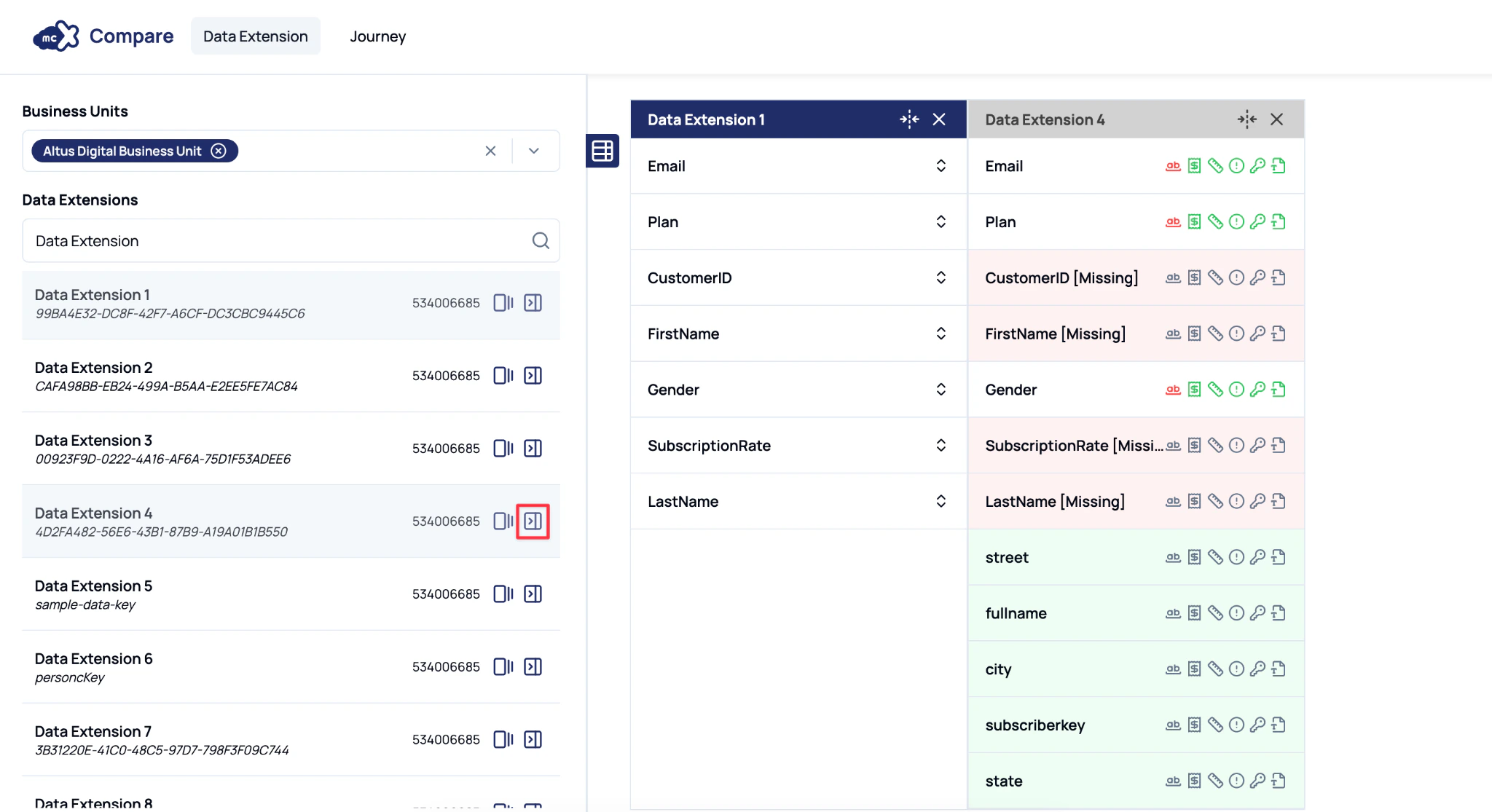
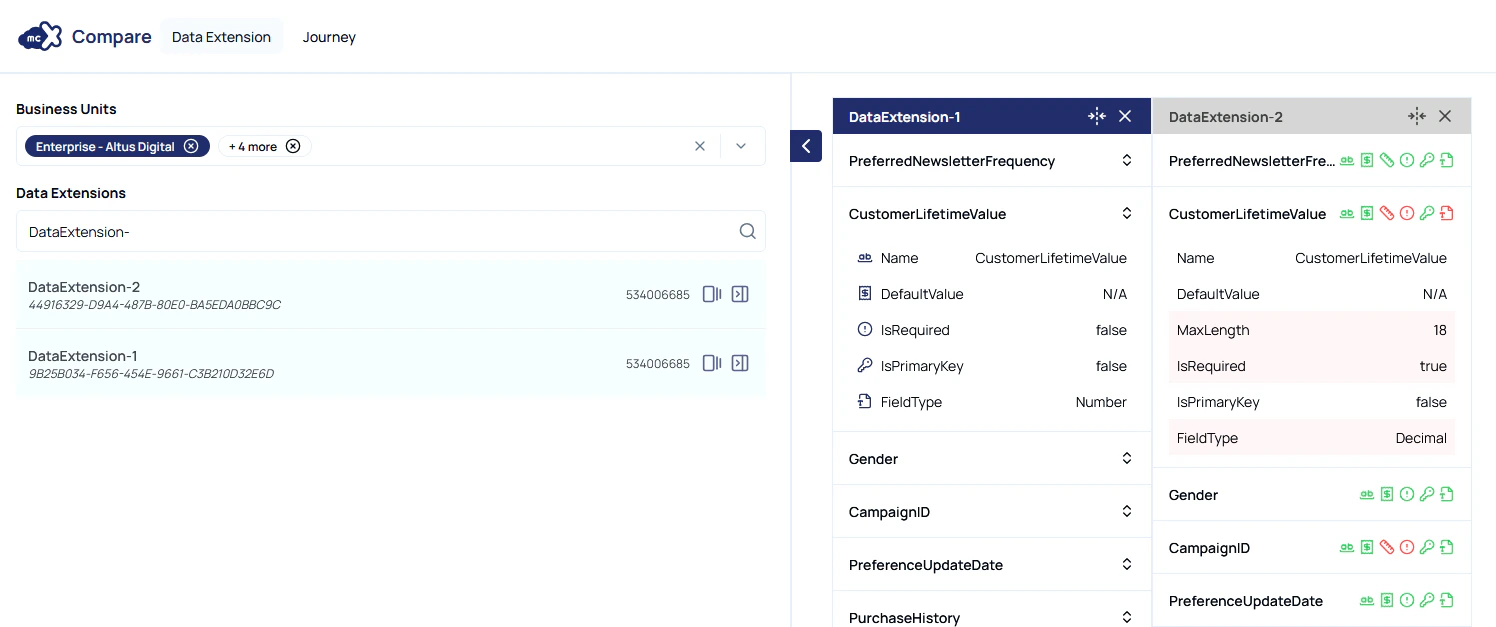
The selected data extensions will be displayed in the Canvas, allowing you to review their attributes side by side.
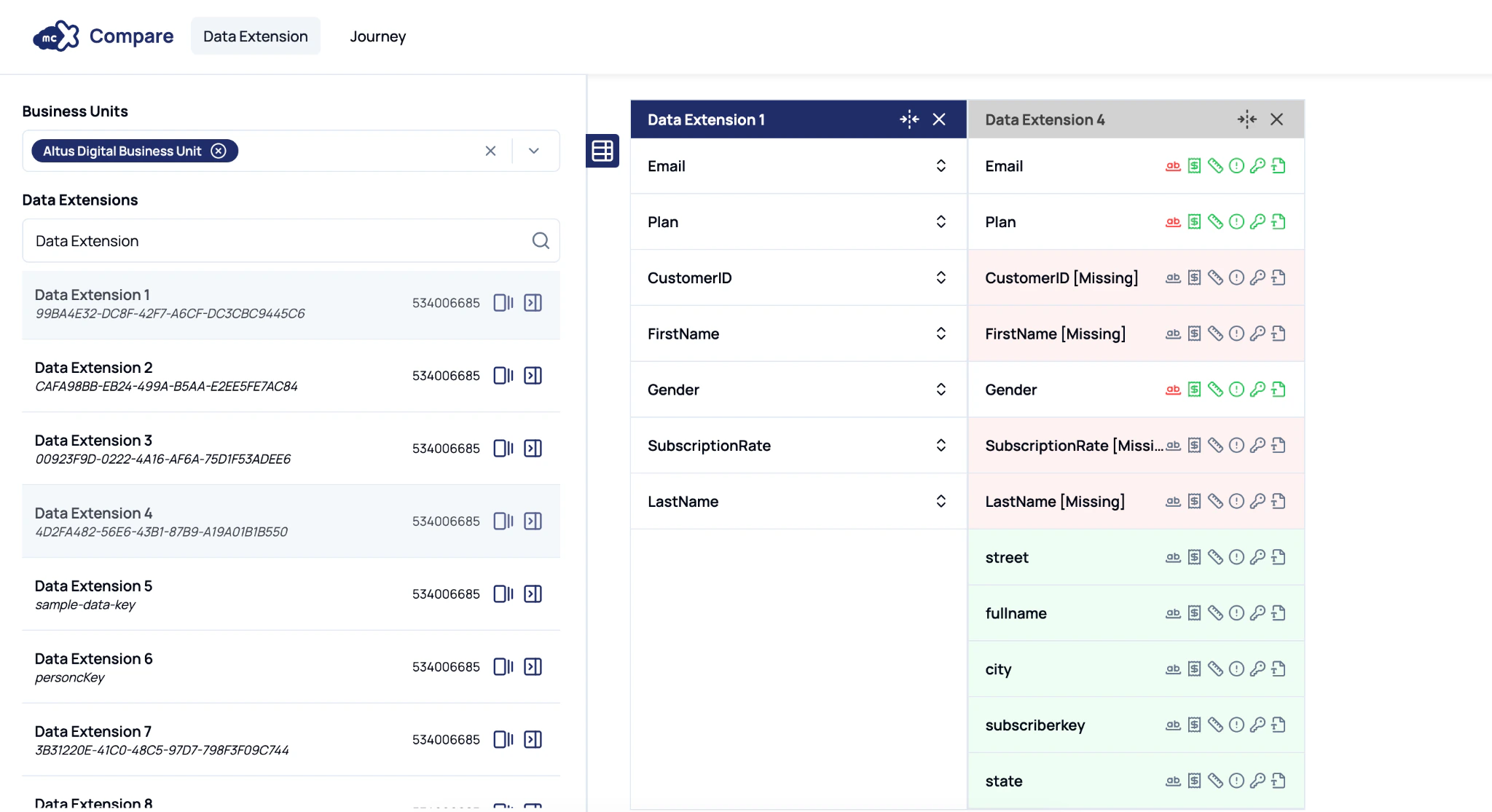
Step 6: Identify the Discrepancies
- Green icons of a data extension field indicate that the field attributes are identical.
- Red icons/rows of a data extension field indicate that the field attribute differs from the Reference Data Extension.
- Click on the red icon/row to view more information about the differences between the data extension fields.